在進行 iOS macOS 開發的時候,我們經常會需要和文件進行交互,比如說關聯並打開某一類型的文件,那麼這個時候,你用到的並不是這個文件的後綴名,而是它的 UTI。
UTI 是一個統一文件類型名稱,它規定了一個文件應該是什麼類型,而不是靠後綴來確定,比如 txt,文本,json 都是純文本文[……]
美洲獅
在進行 iOS macOS 開發的時候,我們經常會需要和文件進行交互,比如說關聯並打開某一類型的文件,那麼這個時候,你用到的並不是這個文件的後綴名,而是它的 UTI。
UTI 是一個統一文件類型名稱,它規定了一個文件應該是什麼類型,而不是靠後綴來確定,比如 txt,文本,json 都是純文本文[……]
在 iOS 10 以後,iOS 使用了全新的 UserNotifications 作為通知 API,這允許開發者使用 圖片、視頻、聲音 等富媒體作為通知內容,同時進一步地,你還可以使用 通知內容防爆[……]
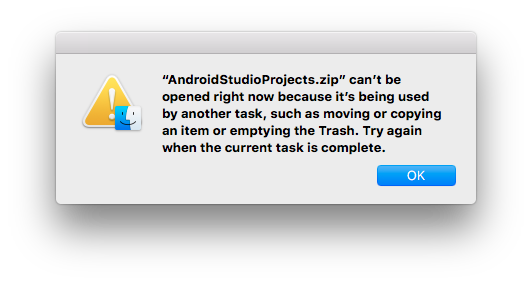
在恢復數據的時候,你可能需要用 U 盤拷貝數據,但是 macOS 默認掛載 ntfs 是只讀的,當然,我們有辦法使用命令行重新掛載它來變成可讀寫。不過這容易造成 ntfs 權限錯誤,結果就是插到另一台電腦上的時候,這個文件可能變成灰色:
如果你這時候強行使用解壓縮軟件打開它,那麼你會得[……]

早在去年,落格輸入法的用戶就有報告說落格輸入法 macOS 在 有道云筆記 的 MarkDown 模式下無法正常鍵入中文,經過測試證明確實如此,體現為打中文字的時候,buffer的刷新會奇怪的刪除掉光標前的一個字符——對,不多不少,就刪一個。
搗鼓了很久未果,最後我沒招了打印出了所有內容,發現[……]
在 iOS 上,如果我們要一個 View 顯示陰影,那麼基本上是這麼做的:
|
1 2 3 4 5 |
self.view.layer?.shadowColor = NSColor.black.cgColor self.view.layer?.shadowOpacity = 0.1 self.view.layer?.shadowOffset = CGSize(width: 0, height: 0) self.view.layer?.shadowRadius = 3 self.view.layer?.masksToBounds = false |
不過,到了 macOS 上,這樣就不靈了——沒有任何效果。
答案在於 macOS 上如果你想要給一個 View 使用 [crayon-6ad2680[……]
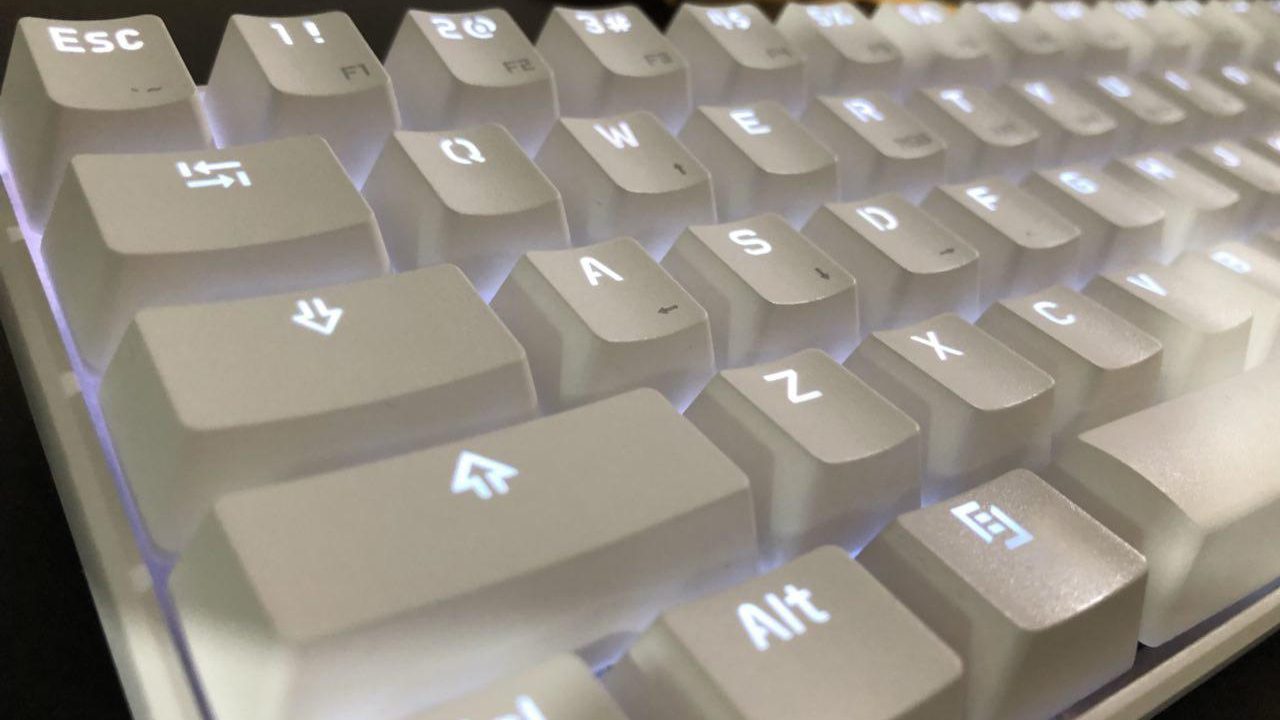
之前我寫過一篇撲克 2 機械鍵盤 Mac 鍵位修改的文章,現在由於我買了一個升降桌,然後poker是有線的,於是很不方便,就尋思買一款藍牙鍵盤,沒想到當年夢想的藍牙機械鍵盤已經有了現成的,正好,尋思著就定制一個。
我對poker的wasd方向鍵情有獨鍾,尤其是改 capslock 為 f[……]
一般情況下,你不需要了解這些內容。
在極少數情況下,你的app可能需要去獲取用戶按下的按鍵信息,比如盜號木馬 開發一款輸入法。只有這樣你才能給用戶提供候選。
怎麼在 macOS 下創建一個輸入法,我在Swift 使用 InputMethodKit 寫輸入法這篇文章中有詳細的說明,這里略過[……]
在開發落格輸入法 macOS 版本的時候,我遇到了這麼一個難題,那就是窗口優先級的問題。在之前 如何讓 NSWindow 顯示在不同的 Space 或者 Screen 中 這篇文章中我提到了自己實現了落格輸入法的候選欄,其實是用一個 NSWindow
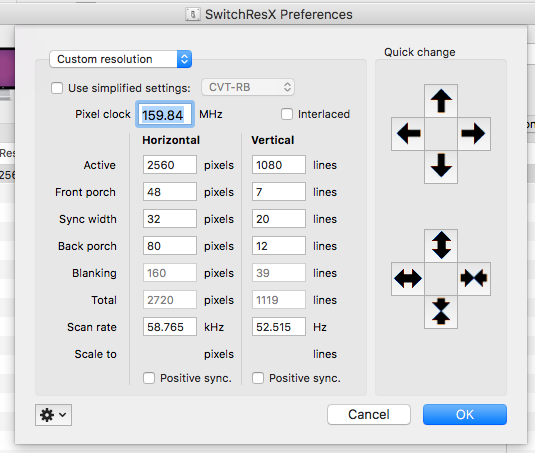
前段時間我說過我攢了一台高配的黑蘋果,當時用的是一台普通的 1080p 顯示器,我的 21:9 給同事用去了。
現在,我還是受不了這個16:9,於是我和他換了下,我又用回了我的 21:9,結果沒想到……尼瑪竟然不支持!
聽說是 hd530 核顯驅動不太行導致識別不了……
總之,咱還[……]
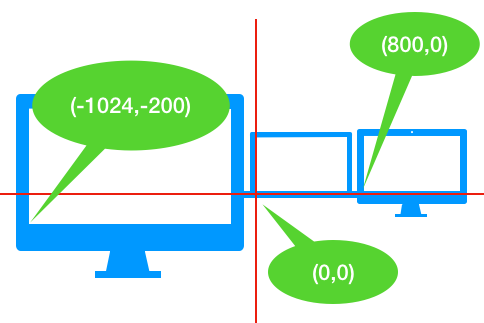
在開發落格輸入法的時候,我遇到了這麼一件事情,就是作為候選欄的窗口會在屏幕邊緣的時候超出屏幕去!所以,在顯示窗口的時候我根據坐標做了額外的檢查:
|
1 2 3 4 5 6 7 8 9 10 11 12 13 14 15 16 17 |
if visiableCandidateCells.isEmpty { if let screenframe = NSScreen.main?.visibleFrame { if screenframe.width < location.x + size.width { location.x -= location.x + size.width - screenframe.width } } } else { if let screenframe = NSScreen.main?.visibleFrame { if screenframe.width < location.x + self.window!.frame.size.width { location.x -= location.x + self.window!.frame.size.width - screenframe.width } } } if location.y < 50 { location.y += 35 + 35 } |
總之,就是說如果坐標算上自己的寬度超過了屏幕的寬度,就把它挪回來。
但是,這樣[……]
在寫落格輸入法 Mac 版的過程當中,我遇到了這麼一個問題,系統的候選條 API 年久失修,很多功能 API 存在但根本無效,比如:
|
1 2 3 4 5 6 7 8 9 10 11 12 13 14 15 |
/*! @method @abstract Sets the "style" attributes for the candidates window. The keys for the attributes dictionary and the values are: NSFontAttributeName (value = NSFont) Setting the font attribute sets the font that is used to draw Candidates. It does not effect the selection keys which are always drawn in the same font. Note that to set the font size you should use this key/value pair. IMKCandidatesOpacityAttributeName (value = NSNumber with a float value between 0 and 1). Sets the opacity level to transparent (0.0) to completely opaque (1.0). The default opacity is 1.0. This constant is declared above. NSForegroundColorAttributeName (value = NSColor) Sets the text color used for the candidate text. By default it is black. NSBackgroundColorDocumentAttribute (value = NSColor). Set the background color that is drawn behind the candidate text. IMKCandidatesSendServerKeyEventFirst (value = NSNumber). NO (default) gives the candidate window first chance at key events. YES causes events to first be routed to the current IMKInputController. In that case, if the event is not handled, it will then be sent to the candidate window. */ open func setAttributes(_ attributes: [AnyHashable : Any]!) |
這個方法是用來設置候選條風格的,裡邊除了默認的[crayon-6ad268022ac3c1025[……]
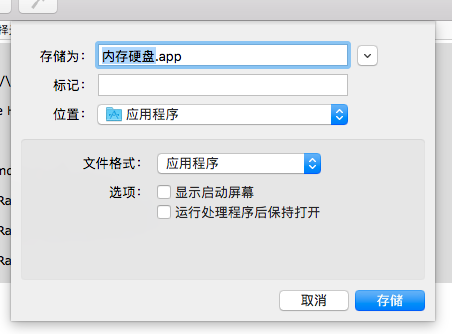
隨著 Xcode 的版本升級,速度越來越慢,尤其一言不合就“白板”的問題相信大家都會有遇到。
這是非常影響開發效率的事情。如果有可能,那麼我們將 Xcode 的緩存文件放到內存,速度應該快很多。(雖然現在 rmbp 的 ssd 已經十分的快速了,但比起內存,還是差的很遠——對於機械硬盤[……]
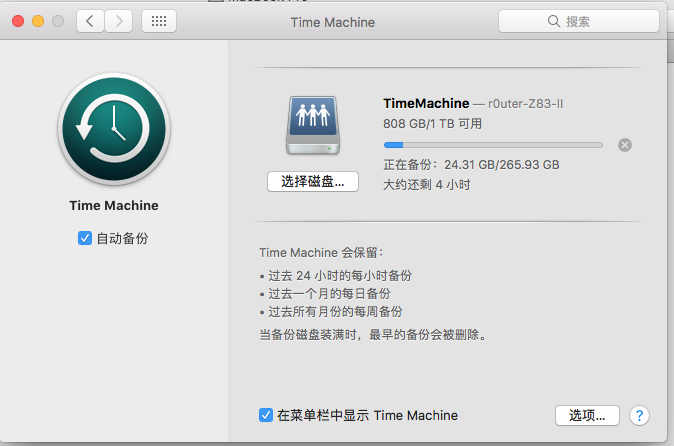
終於換了一個相對穩定的工作環境,現在,我的桌面是這樣的:
好了,總之,用移動硬盤定期備份不是長久之計,所以,身為窮逼,我們要給自己尋找一個合適、方便的備份方案了。
俗話說的好:
那麼,我們就來說說我的設計方案。
首先,作為一個窮逼,設計備份方案[……]
做開發者肯定有過這樣的煩惱:版本號提交錯了!
編譯和測試的版本多了,難免提交的時候才發現版本號搞錯了。要不就是後台版本號正確,前台的版本號忘記更改。其實,可以讓前台自動獲取後台的版本號數據,比如這樣:
|
1 2 |
let info = Bundle.main.infoDictionary! version.text = "Version \(info["CFBundleShortVersionString"]!) (build \(info["CFBundleVersion"]!))" |
後台的版本號[……]
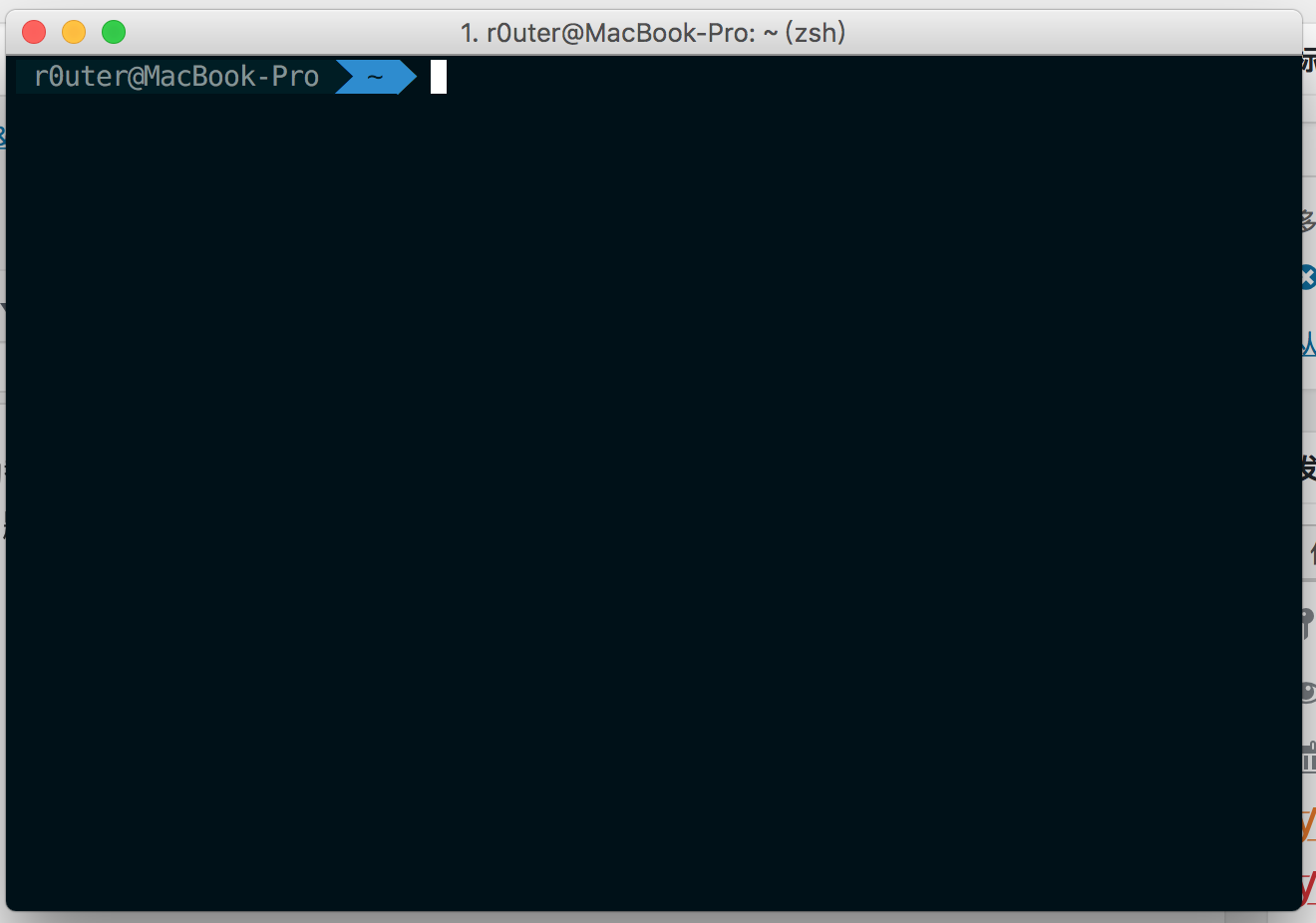
iTerm 作為一個 mac 裡自帶終端的替代品真的是太好用了,功能多、界面也好看。配合zsh+皮膚,終端從此也美麗(題圖)。
不過,zsh 啟動總是很慢,雖然說每次啟動前輸入的內容還是不會丟失,但總等著也不是個事(說句實在話,我就這麼忍受了好多年……)
總之,其實這個問題是可以被解決的[……]
很多網絡運維、或者站長需要通過 ssh 來管理服務器、vps,如果不湊巧,你和服務器之間相隔了一堵 GFW,那麼由於 GFW 會分析 ssh 數據包,結果就是導致稍微慢一點的網絡就會讓命令卡一分鐘。
GFW 現在完全有能力分析 ssh 流量特徵,以判斷你是在真的使用 ssh 配置服務器,還是使用它[……]
如何在 iOS 上寫一款輸入法?這個問題已經被很多人解答過了。你可以輕易通過 Google 找到一篇詳細的教程。但是,在 macOS 上寫一款輸入法就沒那麼簡單了。
好吧,嚴格來講,是指用 Swift 在 macOS 上寫一款輸入法很難。主要的原因是 從來沒有人做過這件事情 。
目前能夠[……]
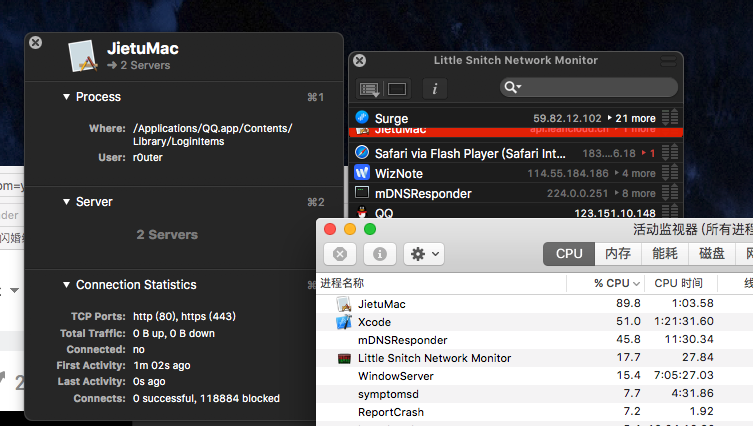
更新,新版的qq截圖的名稱改了,改為 QQ jietu plugin.應用程式 ,目錄不變。
下文中的命令已經做了對應的修改。
我們都知道 QQ 這個東西和 360 一個樣,盡不干好事。出了 Mac 版也沒想著把功能做好,倒是流氓先耍起來了。這次更新後,[……]